Getting stuck in a dead zone with a blank screen is the quickest way to ruin a road trip or an overseas adventure. The biggest mistake travelers make is assuming that downloading an offline map gives full navigation access, only to realize later that walking and transit directions simply do not work without a data connection. Preparing your device beforehand keeps you moving safely while saving massive battery power.
- Storage required: 15 MB to 1.5 GB per map
- Supported modes: Driving directions only
- Unsupported modes: Walking, transit, and bicycling directions
- Traffic data: Unavailable offline
- Map lifespan: Expires and deletes automatically if not updated
How to Download Google Maps for Offline Navigation
Open the app on your iOS or Android device while connected to a stable Wi-Fi network. Tap your profile picture in the top right corner and select Offline maps. Choose Select your own map to bring up the selection tool. Pinch and zoom to fit your destination within the blue rectangle. Check the estimated download size at the bottom of the screen and tap Download.
Keep the selection area as tight as possible around your route. Downloading massive chunks of an entire state eats up your storage space and slows down the app performance.
What Actually Works Offline? (Driving vs. Walking Limits)
Google Maps severely limits functionality when it cannot ping its servers. You get full turn-by-turn voice navigation for driving, but the app switches to basic estimations. Without internet, real-time traffic updates, alternate route suggestions, and lane guidance are completely disabled. The app calculates your arrival time assuming the roads are completely empty.
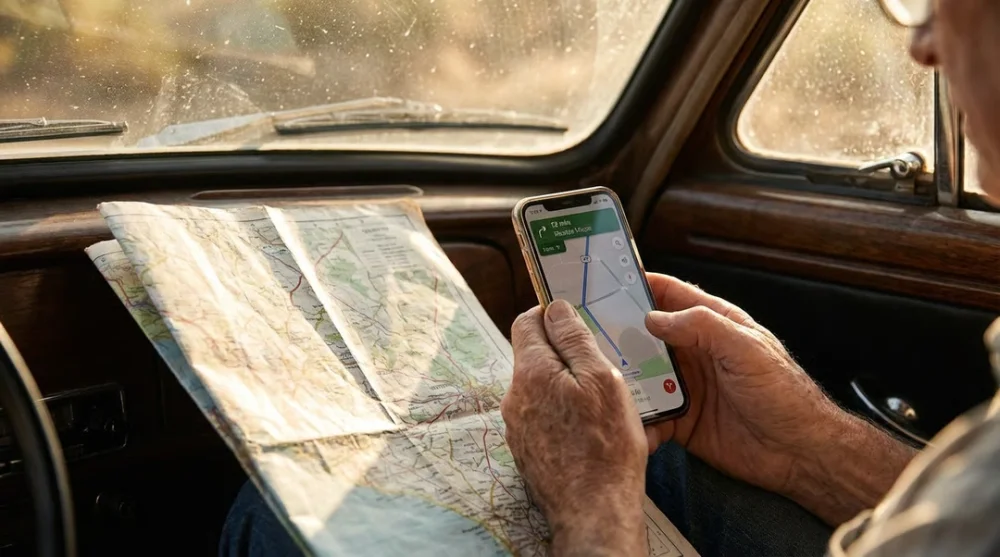
If you plan to navigate narrow pedestrian streets around historical sites during your travels, offline maps will only show you the grid and your blue GPS dot. You have to manually track your position because walking directions do not generate offline routes. This is worth keeping in mind before any road trip where you plan to explore on foot.
How to Save Offline Maps to an SD Card (Android Only)
Heavy travelers using Android phones can bypass internal storage limits by forcing the app to save data directly to an SD card. This keeps your phone running fast even when you store multiple large city maps. Open the offline maps menu and tap the gear icon in the top right corner. Select Storage preferences and switch the toggle from Device to SD card.
This simple tweak prevents the storage full error right when you try to take photos on your trip.
Map Expiration: How to Keep Your Offline Maps Updated
Downloaded areas do not stay on your device forever. Google forces these files to expire to ensure road closures and new businesses are accurately reflected in the local data. Maps expire automatically after a set period if your device does not connect to Wi-Fi.
To prevent losing your navigation data mid-trip, go to the offline maps settings and toggle on Auto-update offline maps. The app will quietly refresh the data in the background whenever you connect to a hotel or cafe Wi-Fi network.
Does Using GPS Without Internet Drain Your Battery?
Your phone uses a dedicated GPS chip that connects directly to satellites, which means it tracks your location perfectly without any cell service. However, constantly searching for a lost mobile network signal drains your battery incredibly fast.
To maximize your screen time, turn on Airplane Mode immediately after you start your offline route. The GPS chip continues to update your blue dot on the downloaded map, but your phone stops wasting energy trying to find nonexistent cell towers. This simple hardware trick keeps your device alive for hours longer during remote hikes or long drives.
If you travel internationally and rely on your phone for navigation, pairing offline maps with the right connectivity solution makes a big difference - check out the breakdown of pocket Wi-Fi vs eSIM for Europe to plan ahead.